Assigning and installing applications
Adding an application to the catalog does not install it on a device. Assignment, request delivery, and confirmed installation are separate stages. The available actions depend on the application source, the management channel, and the readiness of the installation file.
Sources, channels, and available modes
| Source and channel | Required | Allowed / Available to users / Blocked | Limitation |
|---|---|---|---|
| Google Play → Google AMAPI | Installation request through the group policy. | Available for Google Play policy through AMAPI. | The application must be available to the organization in Managed Google Play; check the Android Enterprise integration and per-device results. |
| Google Play → Aitera DPC | Installation of the attached, verified APK. | These modes are not installation modes through Aitera DPC in the current console. | Without an APK, “Catalog record only: a verified APK is missing” is displayed. The presence of Google policy buttons does not make them supported for DPC. |
| RuStore → Aitera DPC | Installation of a verified APK after it is obtained from the store. | Only “Required” is available for this card. | Importing the information alone is not enough: a saved APK with confirmed version and signature is needed. |
| Manual APK → Aitera DPC | Request to install the uploaded file. | Only “Required” is available for this card. | Google Play and AMAPI are not used for a manual APK record. |
| App Store → supported Apple MDM | Request to install the iOS application. | Only “Required” is available for this card. | A valid numeric store ID and the Apple MDM system channel are needed. Check silent installation and availability on a specific iPhone separately. |
| Mobile client only / unknown channel | Do not consider automatic installation from the catalog available. | Google modes do not turn the client into a system controller. | A mobile connection QR code by itself does not create a Device Owner or an Apple MDM profile. |
The matrix describes the actions of the current console. Platform APIs may have other capabilities that are not implemented by this wizard.
What the modes mean
Required
Requests installation on the compatible devices of the selected group. For Aitera DPC, the verified APK is sent; for the Google channel, the Google Play policy is applied. In a mixed group, a single Google Play card may use different delivery channels. Check the result for each phone: an unsupported device does not become compatible because of an assignment to the whole group.
Allowed
Removes individual requirements for this application in the Google policy; the general device policy then applies. This is not a command to install the application and not a promise to show it to the user. This option is not offered in the form for APK, RuStore, and App Store.
Available to users
Shows the application in Managed Google Play for installation by the user. The application is not required to install automatically. This option is intended for Google AMAPI; it does not imply an install button through the proprietary Aitera DPC.
Blocked
Blocks the application with the Google Play policy. This action may affect an already installed application; assess the consequences before applying it to a production group. Do not use this mode as a universal command to block an APK on all Android devices.
In the Google API, installation and blocking are described by separate policy types. Their behavior is given in the official ApplicationPolicy.InstallType reference. API names should not be considered additional options of the Aitera form.
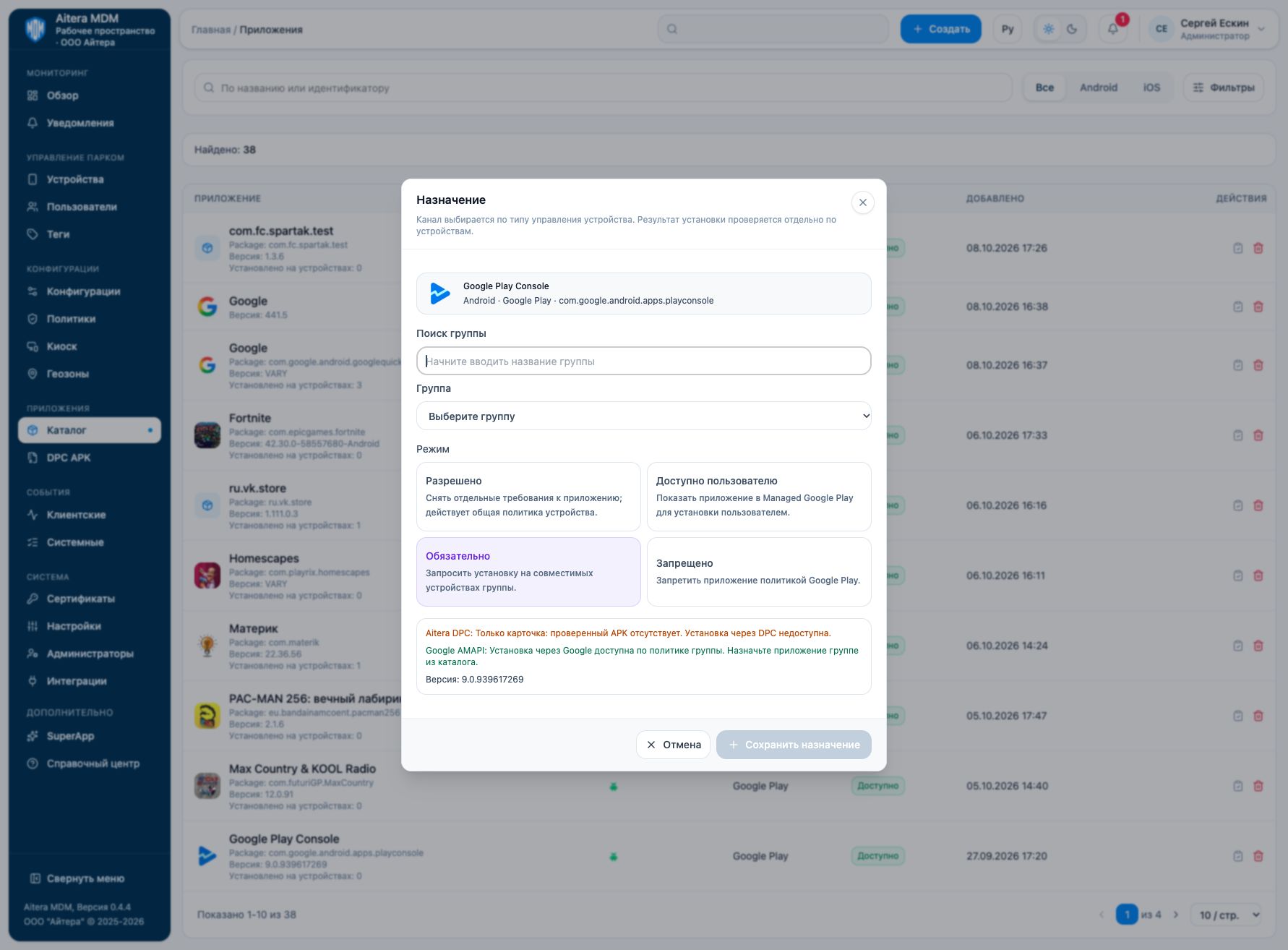
Assigning to a group
- In the catalog, click “Assign application” for the required entry.
- Find and select a group. Check the platforms and management channels of its devices.
- Select an available mode. For APK, RuStore, and App Store, the form leaves only “Required”.
- Read the channel readiness information. If the APK is missing, prepare the file in the application card.
- Save the assignment. Start with a test group whose membership is known.
- Check the assignment and device statuses. For Google, installation is performed through the group policy; for Aitera DPC, the available actions of an individual device must pass the compatibility check.
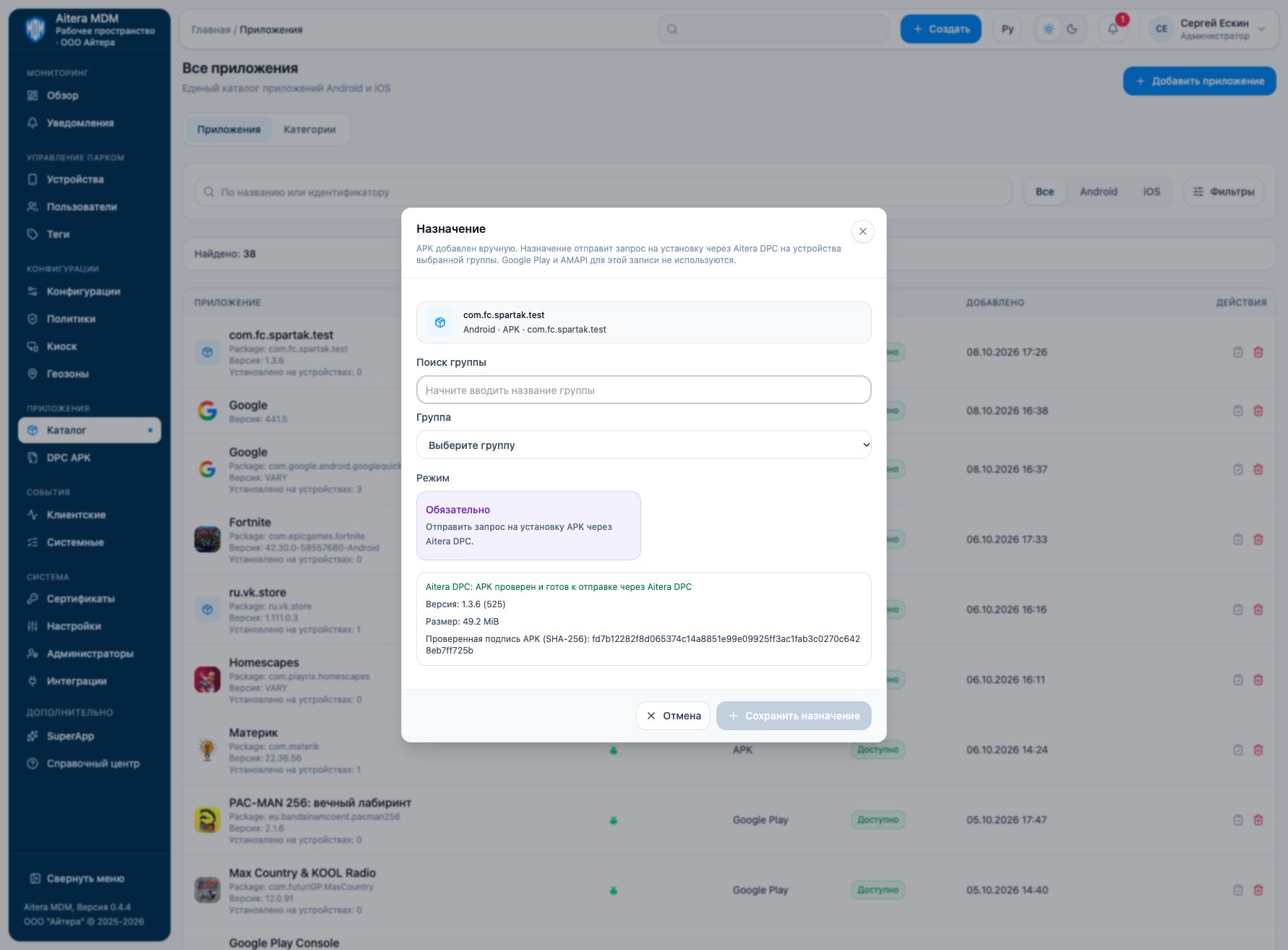
A category organizes the catalog. Adding an entry to a category does not by itself prove that the assignment was saved, that a command was sent, or that the application was installed.
Verification and common problems
| State | What to do |
|---|---|
| Catalog record only / no APK | Attach an APK to the Google Play card or obtain and verify it from RuStore. |
| Google Play required | For a Google device, select a supported Google Play card rather than a manual APK record. |
| No store ID | Correct the App Store identifier; an Android packageName does not work for iOS. |
| Channel not determined | Check the device enrollment and information; do not repeat installation without an established management channel. |
| Assignment saved, no command yet | The server may be preparing delivery. Refresh the assignment statuses; do not create a duplicate assignment right away. |
| Request sent / queued | Wait for a response. This is not yet confirmation of installation. |
| Policy applied | For Google, this confirms the policy stage; additionally check the installed application on the phone. |
| Installed | Verify the package, version, and application launch. Before Kiosk, check sign-in, network, and permission requests. |
Client events help verify delivery and device responses. Changing or deleting a catalog entry should not be considered removal of the application from phones.
Groups · Kiosk · Integrations