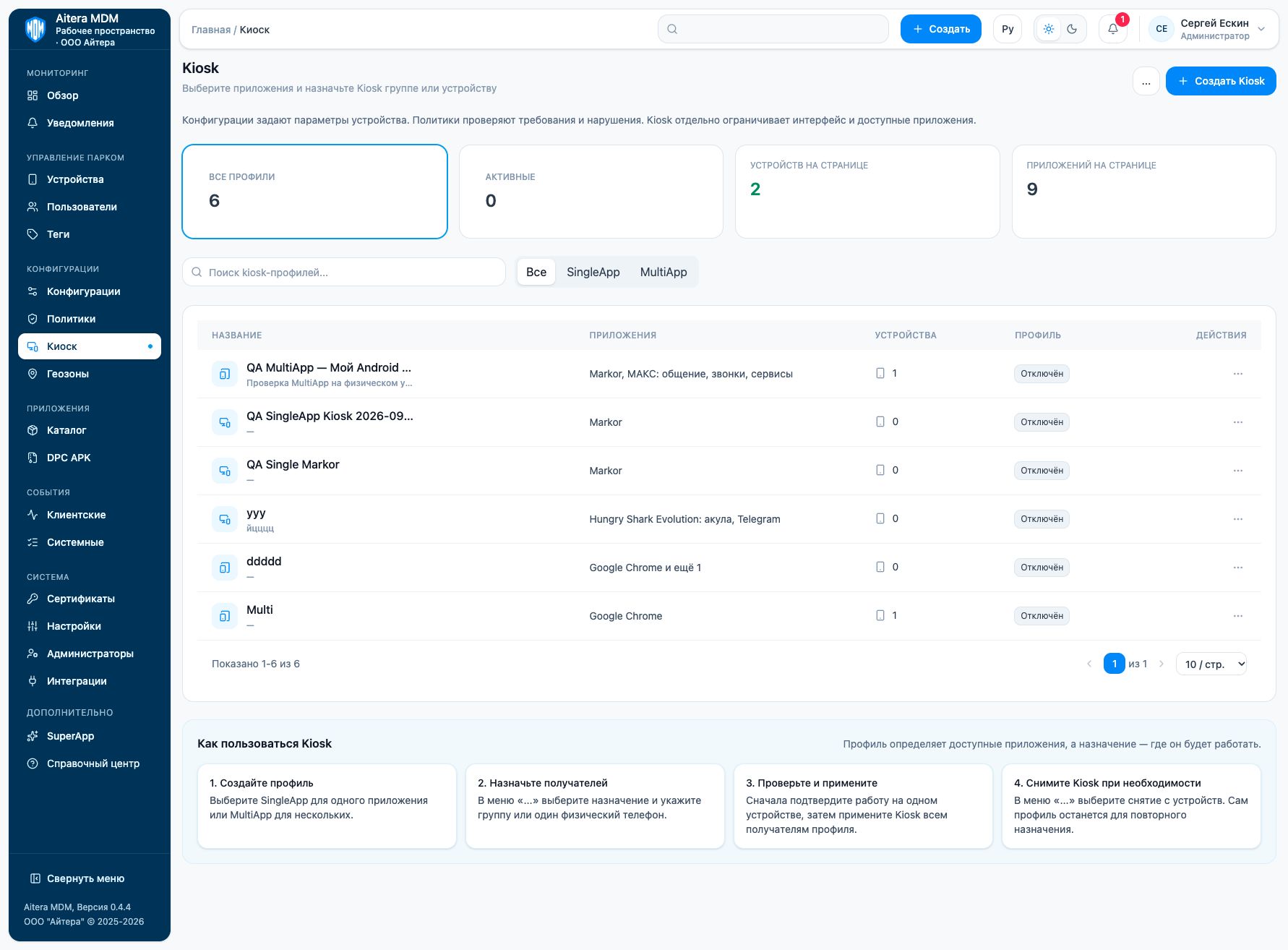
Kiosk mode
Kiosk restricts a device to the selected work applications and defines which system interface elements are available. It is suitable for a self-service terminal, a work tablet, a checkout, or an employee device with a limited set of tasks.
The profile describes the mode, applications, and restrictions. Assignment defines the recipients. Applying sends commands to the devices. A saved profile and the “Enabled” status do not by themselves prove that the phone has already entered Kiosk.
Which mode to choose
| Mode | User experience | When to use |
|---|---|---|
| SingleApp | One target Android application. Access to the home screen, recent apps, and notifications is not permitted by the settings of this mode. | Checkout, self-service stand, survey, information screen. |
| MultiApp | A set of permitted work applications on one device; access to system elements is set with switches. | A work tablet with inventory tracking, communication, and a corporate browser. |
SingleApp
Select exactly one work application. It must launch and perform the required task on its own: check sign-in, network connection, and permissions before restricting the interface. If the application needs to switch to an external browser or another application, this scenario must first be tested, or use MultiApp with the necessary set of applications.
The orientation in the profile is fixed to Auto: the target application controls it. The “Home screen”, “Recent apps”, and “Notifications” switches are unavailable. The status bar, power menu, and lock screen can be configured separately.
MultiApp
Select at least one work application; usually this is several applications for one employee role. The user works with the permitted set through a managed start screen. You can configure the home screen, recent apps, notifications, status bar, power menu, and lock screen.
The available orientations are Auto, Portrait, and Landscape. Note that an external switch from a work application may require an additional permitted application. Check the actual work route, not just the presence of icons in the menu.
Requirements and boundaries
The wizard selects Android applications from the managed catalog and checks their readiness for Kiosk. iOS entries are not work applications of a kiosk here. For Aitera DPC itself, prepare a supported corporate device and a verified application version; compare the management channels.
A store card without a confirmed version and signature may be shown as “Not ready for Kiosk” and be unavailable for selection. Follow the reason shown and prepare the installation file. The “Ready for Kiosk” status confirms the catalog check, not a successful launch of the application on a physical device.
Android Lock Task restricts access to a list of permitted applications; this differs from screen pinning by the user. The capabilities depend on device management and Android: official Lock Task description. The SingleApp/MultiApp profiles of this wizard must not be automatically equated with the similarly named capabilities of Google AMAPI or Apple.
Workflow
Orientation, each system switch, their combinations, and example profiles are described in detail in the section “Kiosk mode settings”.
- Prepare the application, network, account, and a way to exit for maintenance.
- Create a profile and select the mode and restrictions.
- Assign one test device or a small group with a known composition.
- Perform verification and applying. Look at the phone itself and confirm the launch without permission prompts.
- After verification, apply the profile to all recipients and monitor the confirmations.
- For maintenance, use profile removal or a temporary emergency exit — these are different actions.