Apple Business Manager
Connection to Apple Business Manager for Automated Device Enrollment (ADE) of corporate devices. ABM and APNs perform different tasks; both corresponding connections are required to manage Apple devices.
Open Integrations → Add integration → Apple Business Manager. For a connection that is already installed, use Configure.
Preparation
- Issue a public certificate in the management block below and download the PEM file.
- In Apple Business Manager, create or select an MDM server, upload the PEM and download the server token (.p7m).
- Upload the .p7m, save the settings, synchronize the devices and assign an enrollment profile to them. Keep track of the server token expiration date.
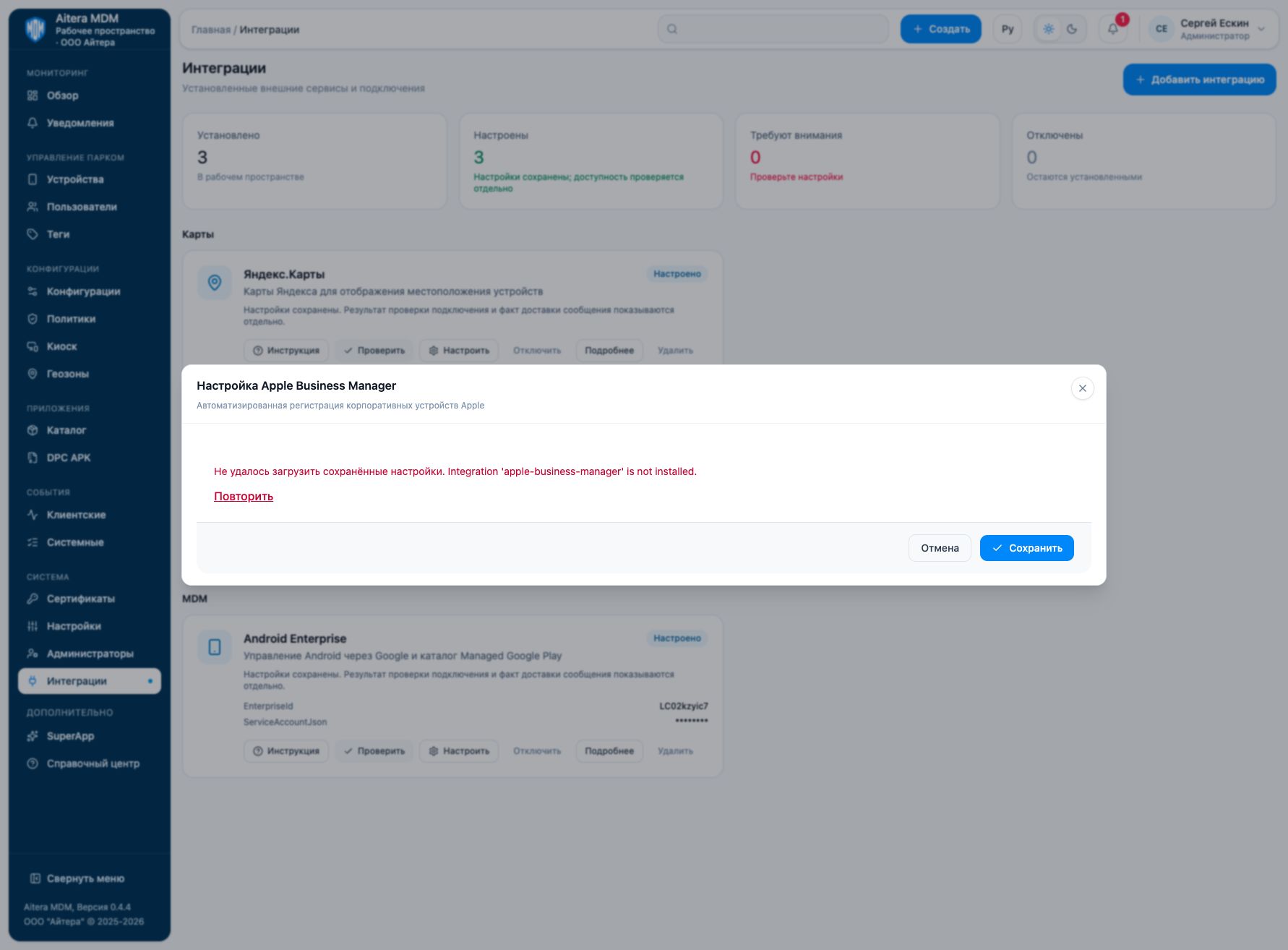
On the tested environment, opening an ABM that is not yet installed returns “Integration … is not installed” and blocks saving. The screenshot shows this error. The intended parameters and preparation are described below; completing the connection through this form requires a fix to the settings loading.
Parameters
| Field | Kind | Purpose and filling rules |
|---|---|---|
| Token expiration | Read-only | Server token expiration date determined by the server. The field is read-only. |
| Connection status | Read-only | State of the token exchange according to the server. The field is read-only. |
| Server token (.p7m) | Secret | Server token file downloaded from Apple Business Manager after binding the MDM server; stored as a secret. |
Saving and changing
Fill in the parameters and click “Save”. When the form is reopened, secrets are not shown: the secret presence indicator is not its value. An empty field for an existing secret keeps the previous value; a new value replaces it. After changing, check the connection again.
The Apple Business Manager type is available in the full integration catalog.
Verifying the result
- In MDM, obtain the server’s public certificate for binding in ABM.
- In Apple Business Manager, create or select the agreed MDM server, upload the public certificate and download the .p7m server token.
- Upload the .p7m to MDM, check the connection and the synchronization of the assigned devices.
- Assign the required devices to this server in ABM; check their availability and enrollment profile in MDM.
The “Configured” status means saved settings. Evaluate the connection check result and the target operation result separately. Check details are available in the connection card.
Limitations and dependencies
The token has an expiration date and requires renewal. Synchronizing the device list does not automatically install the MDM profile on a device that is already in operation. Do not change the assignment of active devices without an agreed enrollment process.
Troubleshooting
| Symptom | What to check |
|---|---|
| Token is not accepted | Check the .p7m file, the selected MDM server and the match with the public certificate. |
| Connection exists, list is empty | Check the assignment of devices to the required server in ABM and the synchronization result. |
| Device did not enroll | Presence in ABM does not mean ADE is complete: check the assigned profile and the device activation stage. |