Telegram
Notifications to administrators through a Telegram bot. The recipient is selected by chat ID.
Open Integrations → Add integration → Telegram. For an already installed connection, use Configure.
Preparation
- Open @BotFather in Telegram, send /newbot, set a name, and copy the issued token.
- Add the bot to the target chat or channel and grant it the right to send messages; for a private chat, write to the bot first.
- Get the chat ID from the Bot API update object or use a valid channel identifier, then enter it in the form.
- For a standard connection, leave the API address empty: https://api.telegram.org will be used. Then save the settings and check the connection.
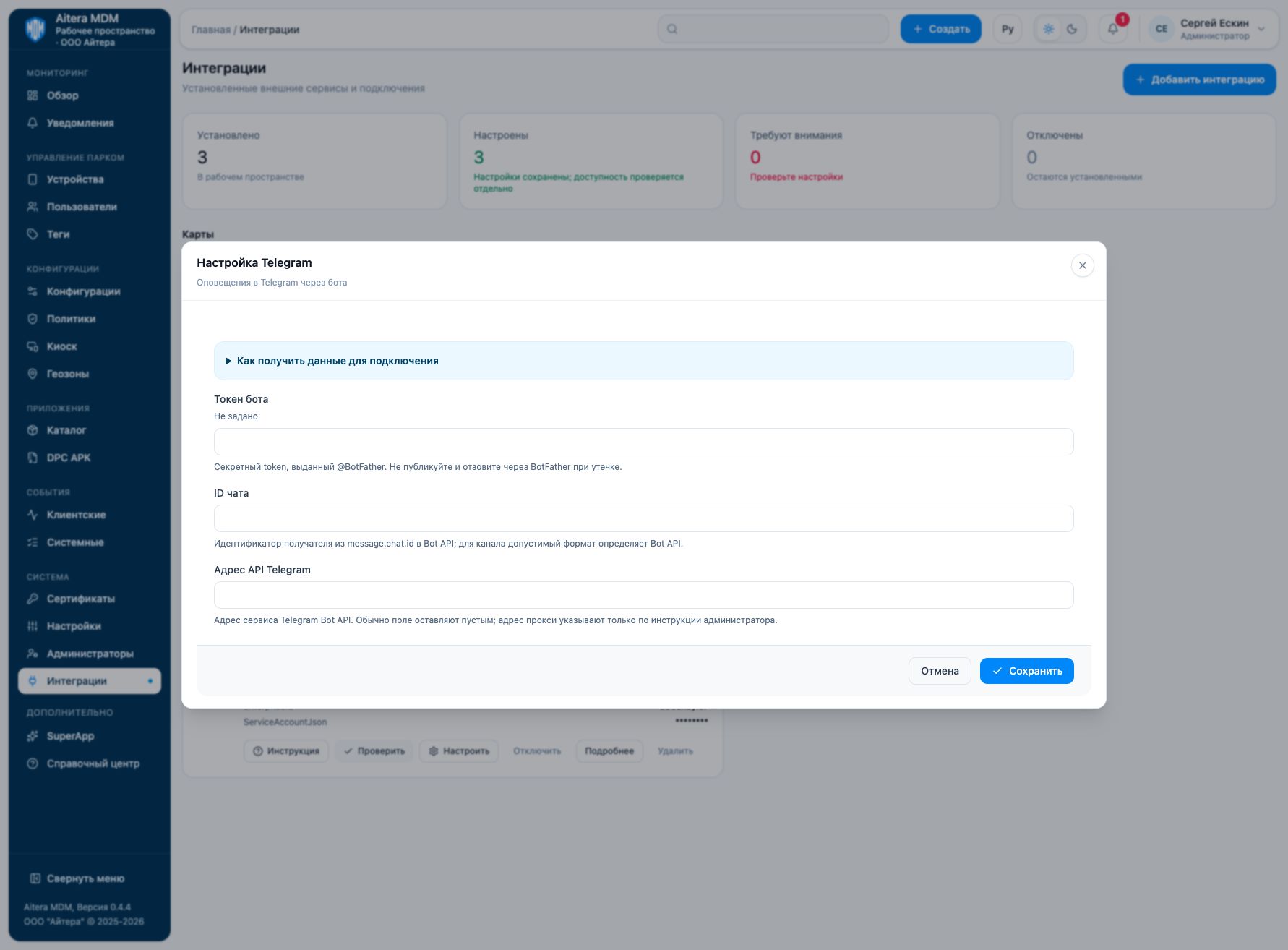
Parameters
| Field | Type | Purpose and filling rules |
|---|---|---|
| Chat ID | Setting | Recipient identifier from message.chat.id in the Bot API; for a channel, the valid format is defined by the Bot API. |
| Telegram API address | Setting | Address of the Telegram Bot API service. The field is usually left empty; specify a proxy address only as instructed by the administrator. |
| Bot token | Secret | Secret token issued by @BotFather. Do not publish it and revoke it through BotFather if it leaks. |
Saving and changing
Fill in the parameters and click “Save”. When the form is reopened, secrets are not shown: the secret presence indicator is not its value. An empty field for an existing secret keeps the previous value; a new value replaces it. After making changes, check the connection again.
The Telegram type is available in the full integration catalog.
Verifying the result
- Make sure the bot has access to the selected chat and the right to send messages.
- Run the connection check in MDM.
- Check that an allowed test notification arrives in the right chat, then link the channel to a notification rule.
The “Configured” status means the settings are saved. Evaluate the result of the connection check and the result of the target operation separately. Details of the check are available on the connection card.
Limitations and dependencies
In a private chat, the user must start the conversation with the bot. Successful bot authorization does not confirm access to the selected chat. Leave the endpoint empty for the standard Bot API; a proxy address must be agreed with the administrator.
Troubleshooting
| Symptom | What to check |
|---|---|
| The bot authorizes, but there is no message | Check chatId, the bot’s membership in the group or channel, and the sending permissions. |
| Unauthorized | Check the token and whether it was revoked in BotFather. |
| API access error | Check network access from the MDM server and the optional endpoint. |