Creating a Kiosk profile
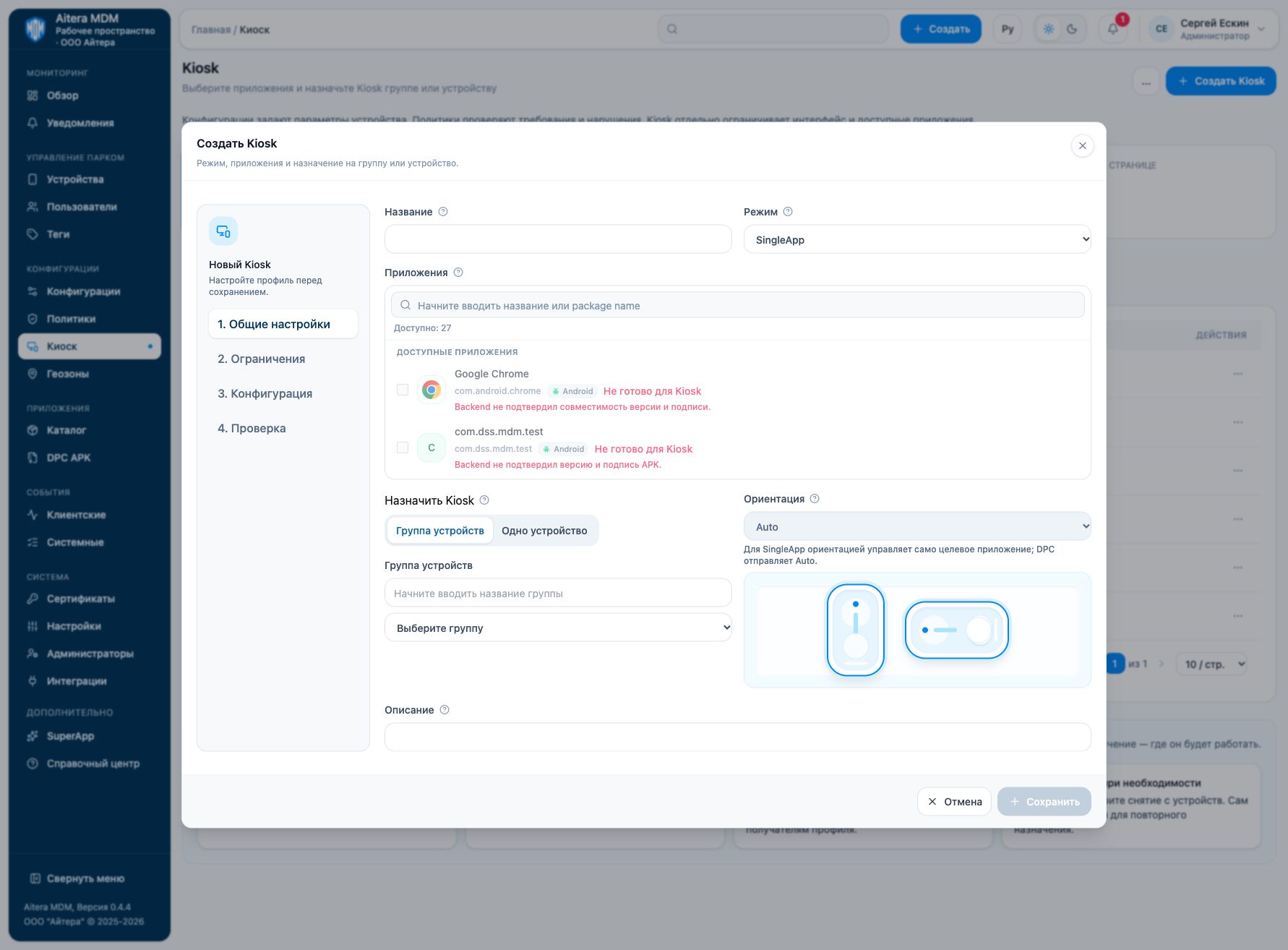
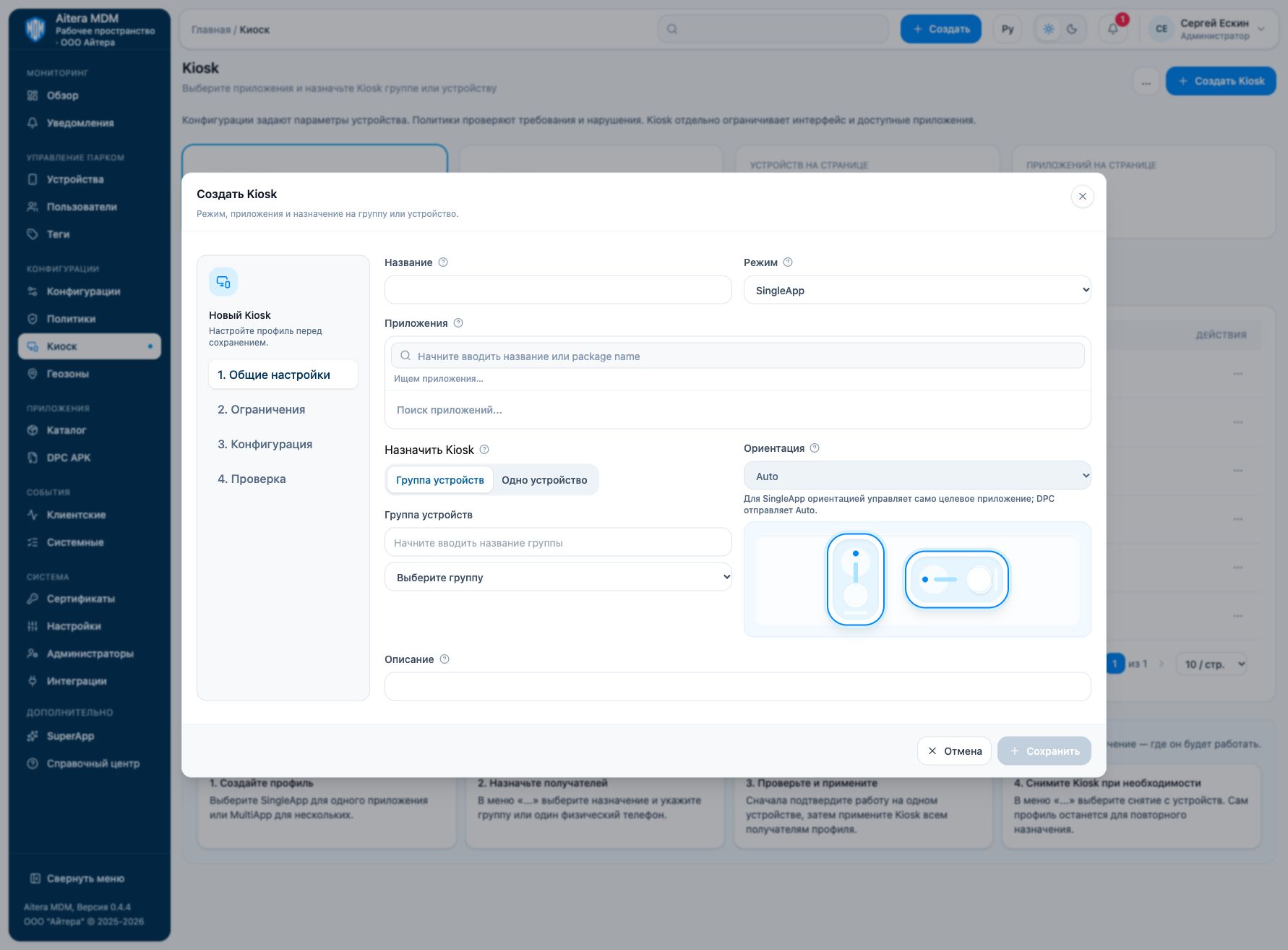
Open “Kiosk → Create Kiosk”. The form is divided into four steps: general settings, restrictions, configuration, and review. The choice between SingleApp and MultiApp determines the available parameters.
General settings
| Field | Value and limitations |
|---|---|
| Name | Short profile name for administrators. Required; up to 256 characters. |
| Mode | SingleApp — one work application; MultiApp — a set of applications. This is the profile mode, not the installation source. |
| Applications | Find catalog entries and select ready Android applications. SingleApp requires exactly one entry; MultiApp — at least one. The form limits the selection to 256 applications. |
| Assign Kiosk | “Device group” or “One device”. Check the actual recipient, not just the group name. |
| Group / device search | Helps find the recipient. The Android phone shown may belong to a group or have no group; check final compatibility before applying. |
| Orientation | In MultiApp: Auto — device setting, Portrait — portrait, Landscape — landscape. In SingleApp the field is unavailable and Auto is sent. |
| Description | Internal note for administrators, up to 1024 characters. Specify the purpose of the profile and the person responsible for maintenance. |
Selecting an application labeled “Not ready for Kiosk” is blocked. The reason may indicate a missing confirmed version, APK, or signature. First fix the readiness in the catalog. The service package com.dex.mdm is added by the server automatically; you do not need to select it as a work application of the profile.
Lock Task restrictions
An explanation of each switch, permitted combinations, and example profiles are provided in the Kiosk settings section.
Device configuration
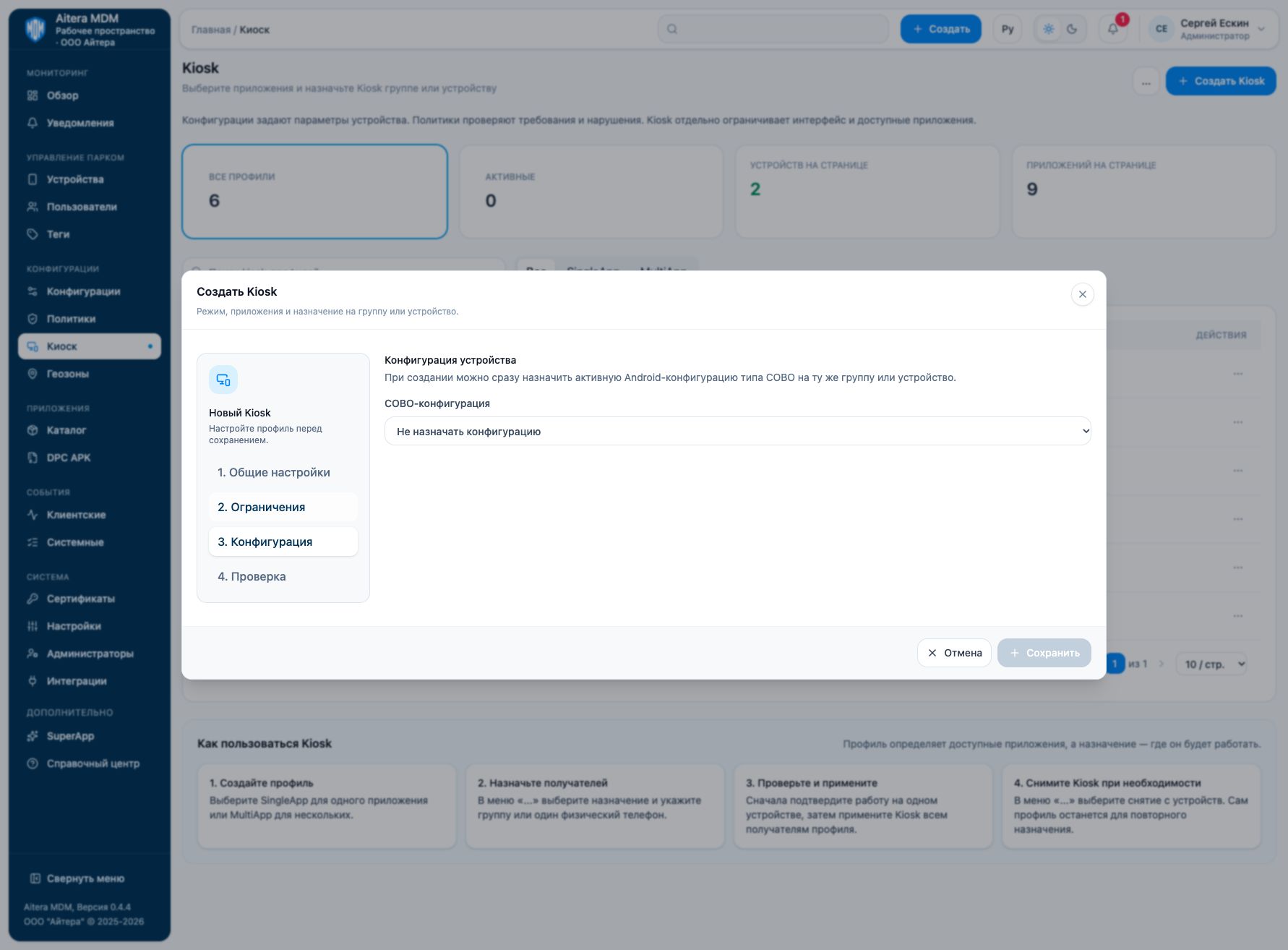
When creating, you can immediately assign an active Android configuration of the COBO type to the same recipient. Select it in the “COBO configuration” field or leave “Do not assign a configuration”.
The configuration sets device parameters, while Kiosk restricts the interface and applications. Prepare the required Wi-Fi, server access, and permissions separately; selecting a COBO configuration does not prove that all these parameters are already in it. See configurations and assignments.
Review and saving
On the “Review” step, the name, mode, application list, orientation, restrictions, and recipient are checked. Fix all readiness messages and wait for the selected applications to be checked. Save the profile, then proceed to on-device verification and applying.
If the profile appeared but the assignment was not saved, open it and repeat the assignment. If the result of creation is uncertain, refresh the list first: clicking again may create a duplicate.
The first launch of the application, sign-in, and permission prompts should be completed on a test device before mass applying. A ready card does not confirm that the work scenario is ready.