Adding a device
The connection wizard opens from “Devices → Add device”.
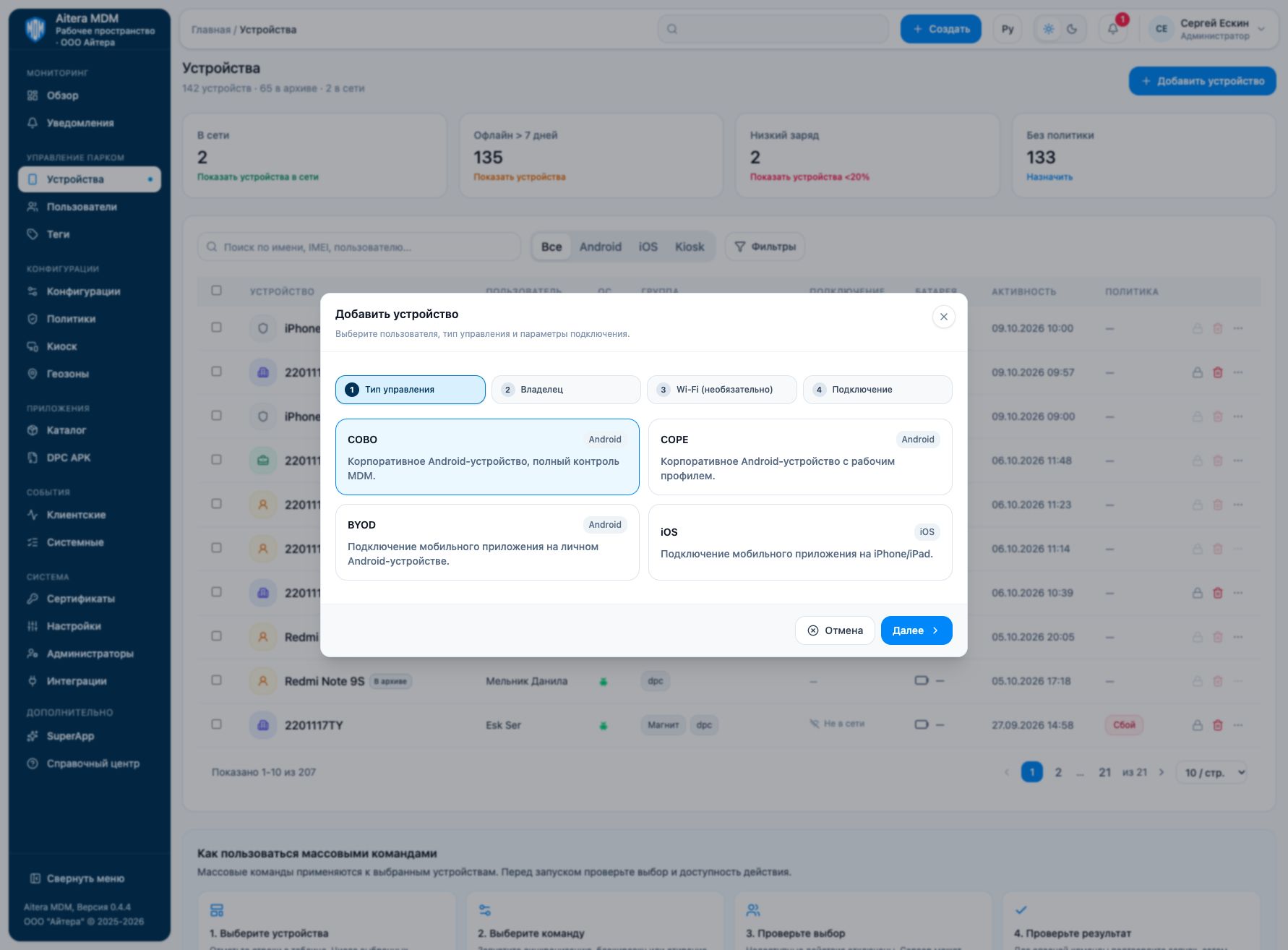
1. Management type
Select COBO, COPE, BYOD or iOS. COBO means full management of a corporate Android device; COPE means a corporate device with a work profile. In the current wizard, BYOD and iOS are described as a mobile app connection.
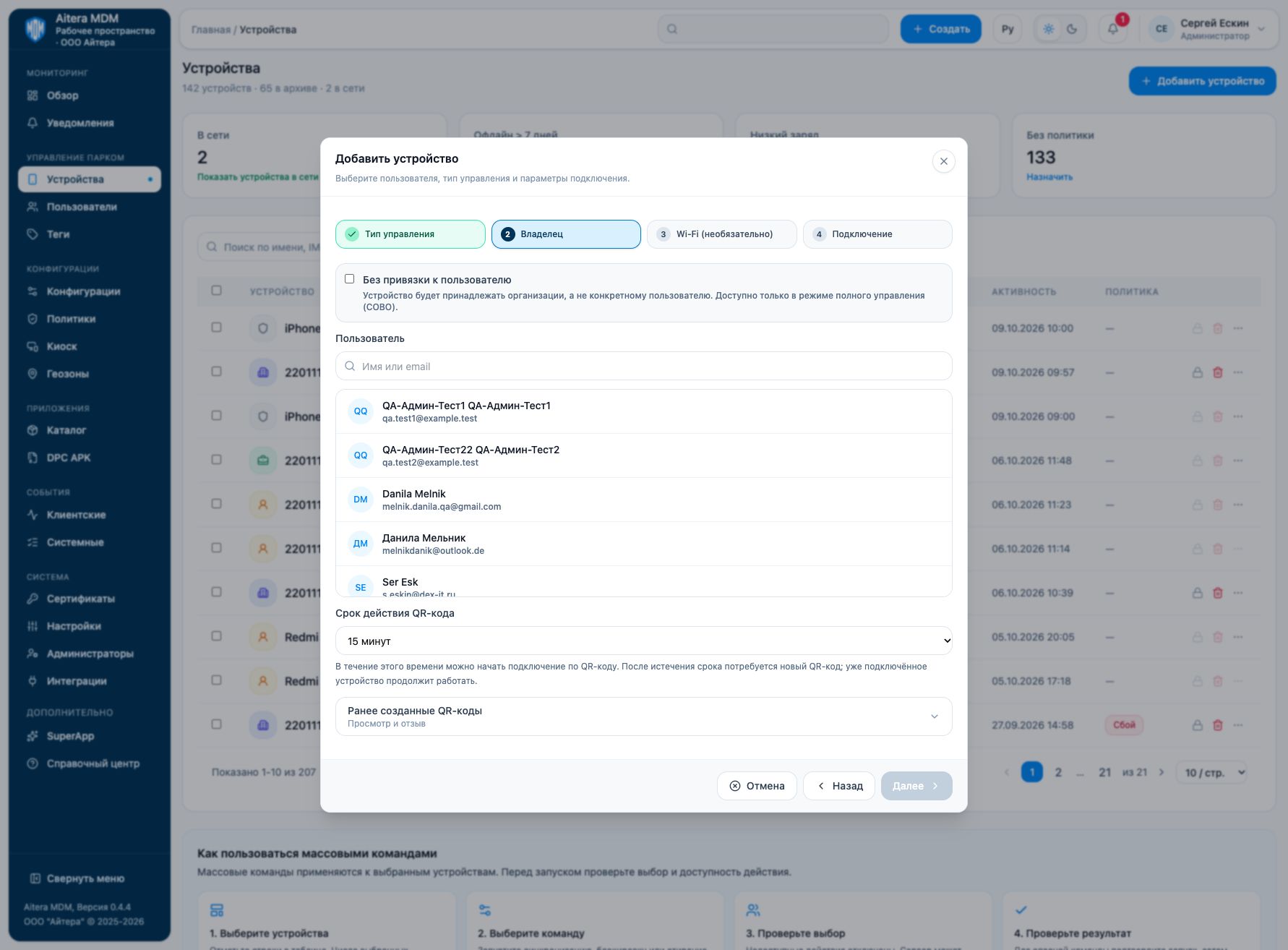
2. Owner and QR lifetime
Select a user. For COBO, you can check “Without user binding”: the organization is determined by the administrator account.
Set the QR lifetime — 5, 15, 30 or 60 minutes. After it expires, a new QR is required for a new connection; a device that is already connected will continue to work.
3. Wi-Fi and connection
For COBO/COPE, the Wi-Fi step is optional. You can select an existing Wi-Fi configuration or “Without Wi-Fi”, in which case the QR contains no network parameters. The device must still be able to reach the MDM server.
After checking the parameters, click “Create connection” and follow the instructions shown by the wizard. Do not give an active QR to outsiders: it is intended for registering a device.
4. Verification
After connecting, find the device in the list and check the owner, mode, last activity and events. Then assign a minimal set of settings and verify it on the device.